
Publishing an event
Section titled “Publishing an event”A created event stays Not Published — invisible to the community — until you publish it:
- Open the event from My Events.
- Tap Publish Event and confirm.
- The event is now published: it appears in search, on the Home screen, on your page for the community, and to your followers in particular.
Publishing does three things automatically: it notifies your followers, it approves all the event’s pending participations, and it shows the event in the Hijri calendar on its date.
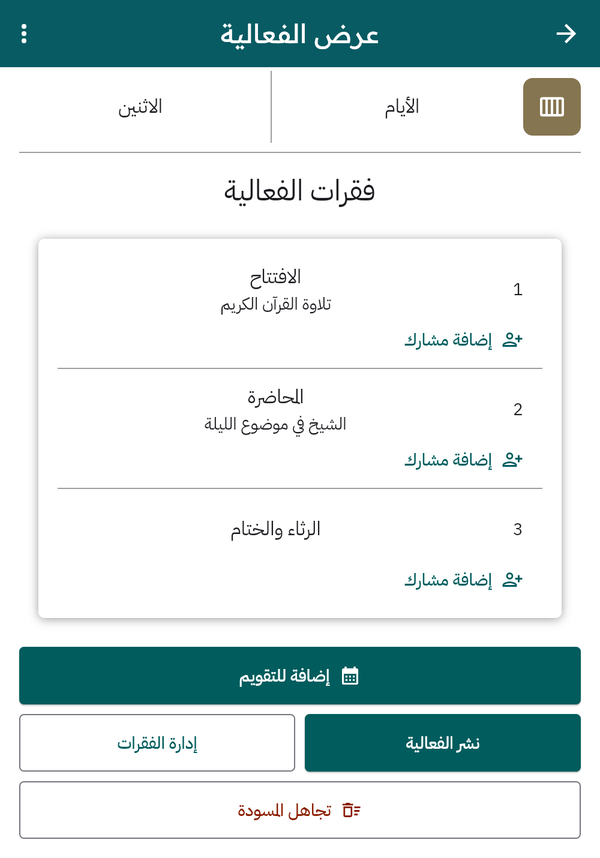
Bottom of an unpublished event: Publish Event, Manage Activities, Add to Calendar
Your events list
Section titled “Your events list”The My Events screen has two tabs: Not Published (your drafts) and Published. Long-press an event to start multi-selection — select several events and delete (archive) them in one action.
Editing an event
Section titled “Editing an event”Open the event and tap Edit Event from the options icon. Changes appear to the community immediately after saving.
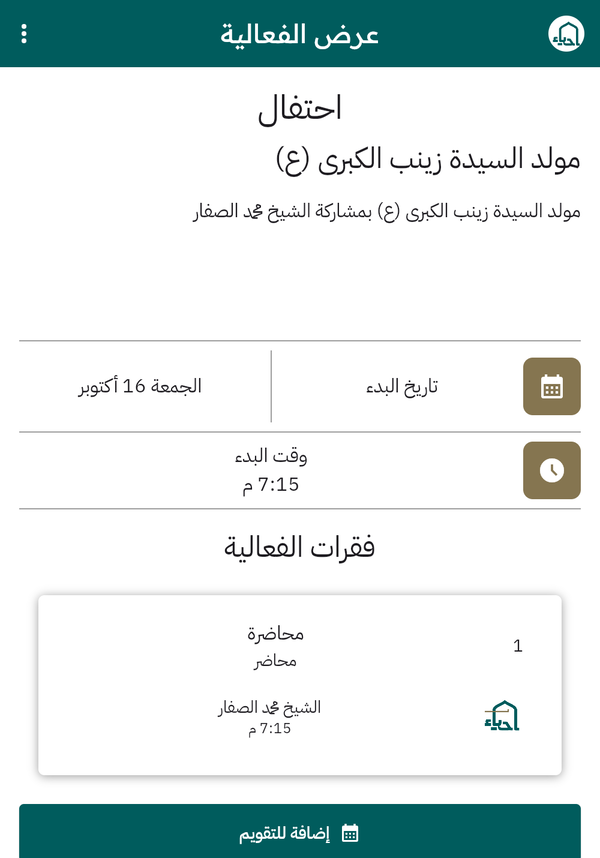
A published event as the community sees it — with its activities and Add to Calendar