
Every event contains a program of activities — for example the opening, the lecture, the eulogy, the closing. Each activity can include participants: the reciter who reads, the speaker who presents, the radud who performs.
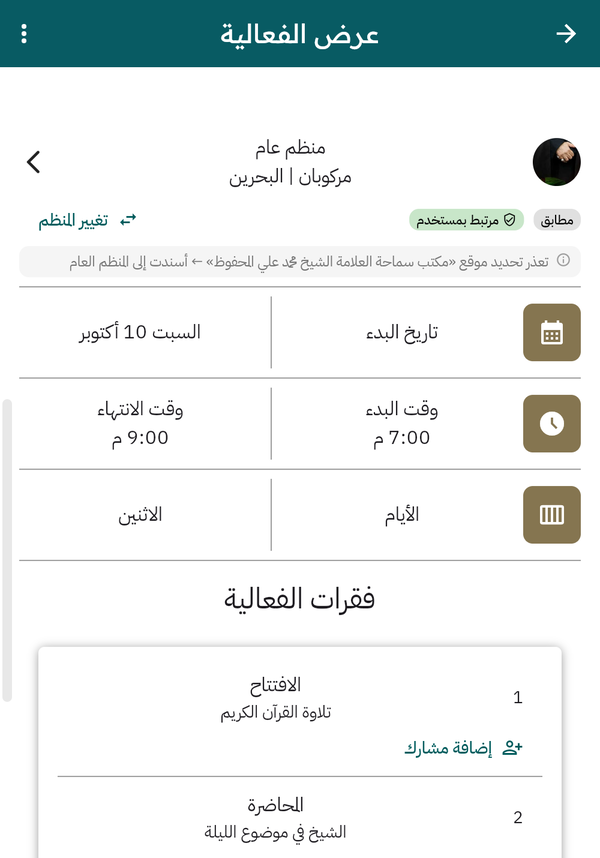
Program activities on the event page — invite a participant to each one
Adding activities
Section titled “Adding activities”- Open your event from My Events.
- Tap Prepare Activities.
- Tap Add Activity — a new activity is created with a sequential number.
- Edit each activity’s title and subtitle — for example ‘Lecture’ / ‘Sheikh on the topic of the night’.
- Drag activities to reorder them when needed.
Inviting participants
Section titled “Inviting participants”- In the activities screen, tap Invite Participant for a specific activity.
- Search for the participant by name and select them.
- The invitation is created as Pending — waiting for the participant’s response.
- On acceptance their name appears under that activity on the event page, and their followers see the event.
| Status | Meaning |
|---|---|
| Pending | The invitation (or request) waits for the participant’s response. |
| Approved | Confirmed; shown in the event’s program. |
| Rejected | The participant apologized or declined. |
| Withdrawn | You pulled the invitation back before it was answered. |
| Removed | The participation ended — the activity was deleted or the participation removed. |
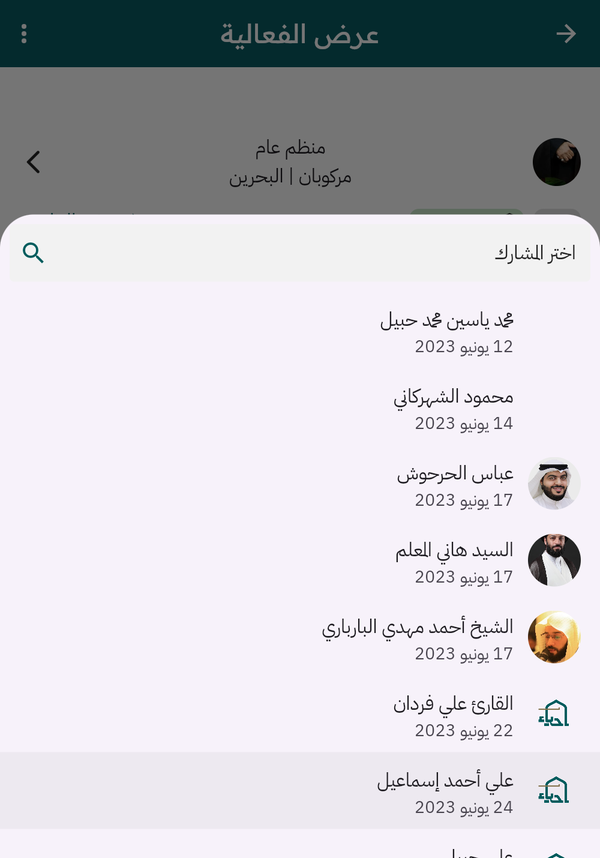
Search for an existing participant, or create a new one
Managing invitations
Section titled “Managing invitations”From each activity you can review every participation’s status, remove a participant who can no longer attend, and invite replacements. Keep the program up to date — the community relies on it to know who is reading and speaking tonight.
Version 1.1 — 21 October 2026