
Events are created from the My Events tab. A new event starts hidden (Not Published) so you can prepare everything calmly, then publish it when it is ready.
Opening the creation page
Section titled “Opening the creation page”- Go to the My Events tab.
- Tap the “+” button to open the event creation page.
Event fields
Section titled “Event fields”| Field | What to enter |
|---|---|
| Poster | Tap Press to upload the poster and choose an image; the built-in crop screen lets you rotate, flip and adjust the ratio. Optional but strongly recommended. |
| Event Type | The category of the gathering — Hosseini Council, Quran Council, Prayer, Lecture, Competition, Course… Required. |
| Event Title | The public name, 3 to 50 characters. Required. |
| Description | Up to 500 characters describing the event. |
| Link | An external page with more information (optional). |
| Youtube Link | A YouTube video for the event — a promo clip or a previous gathering (optional). |
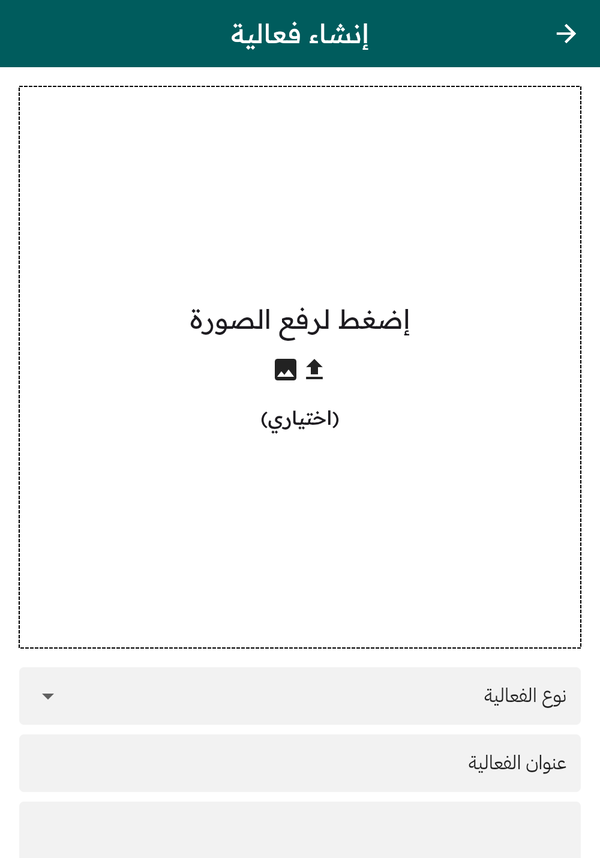
Top of the creation form: poster image, type and title
Event options
Section titled “Event options”| Option | Effect when enabled |
|---|---|
| Open Attendance Registration | Members can tap Attend and each registration notifies you. On by default. |
| Women Sector | Marks the event as a women’s gathering and makes it filterable. |
| Show Live Stream | Shows the red live button when the broadcast URL is set on your profile. |
| Show Location | Displays the location with a photo and map link. On by default. |
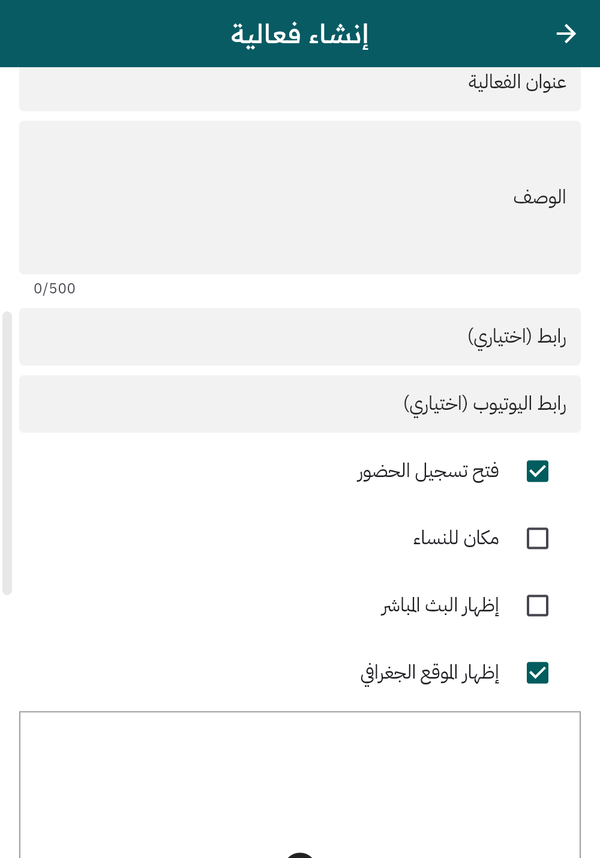
Description, links and the event option checkboxes
Location
Section titled “Location”Two options: the Organizer Location (the default — the address pinned on your page), or a custom location you pin on the map, search for, or set from your current position, for events held somewhere other than your usual venue.
Dates and repetition
Section titled “Dates and repetition”Set the Start Date, End Date, Start Time and End Time.
If your event repeats — a weekly council, for example — enable Repeated Event and pick the weekdays it repeats on (at least one day is required). Recurring events appear in the Weekly Schedule tab and stay pinned to the right day every week without recreating them.
Seasons
Section titled “Seasons”If your event belongs to a religious season — Ramadan, Muharram and the like — select it under Seasons (up to three). Seasonal events gather in the Seasons row on the community’s Home screen, greatly raising their visibility when people are looking for them.
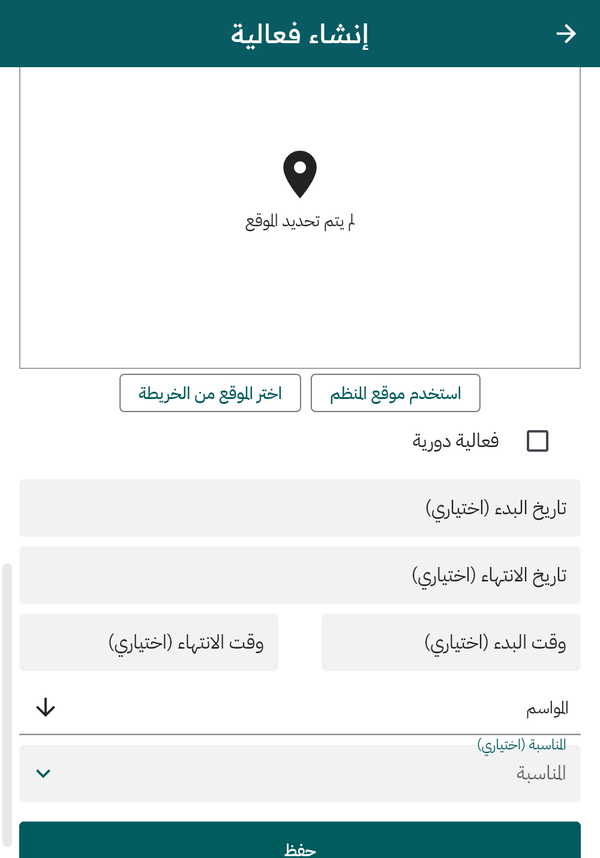
Map location, recurring event, dates and times, and seasons
Saving and the duplicate check
Section titled “Saving and the duplicate check”On saving you will see Event has been created. If a very similar event already exists and it is expected to be a duplicate of the same event, Ehyaa alerts you to check.